 AI Character
Character design AI
Character design is iteration: a silhouette, a colour pass, a costume revision, another pass. This tool compresses the first few loops. Write a brief, pick a style, and get a turnaround sheet in about a minute. Then revise with plain sentences until the design is right, and keep the version you like as the character's reference.
Start from a brief, not a prompt
A design brief has structure: role, era, silhouette, palette, materials, one defining detail. Put those into the description field in that order. "A lighthouse keeper in her sixties, weathered oilskin coat in dull green, grey braid, brass lantern on a belt hook" gives the renderer a silhouette and a palette at once. The sheet shows front, side and back so you can judge how the design reads from every angle.
Iterate with edits
Open any render and use Edit. Type the change ("shorten the coat to hip length", "swap the lantern for a coiled rope", "make the braid white") and choose a tier. The edit is saved as a new image, so nothing is lost and you can compare versions side by side. When an edit becomes the canonical design, pin it as a reference and remove the earlier one.
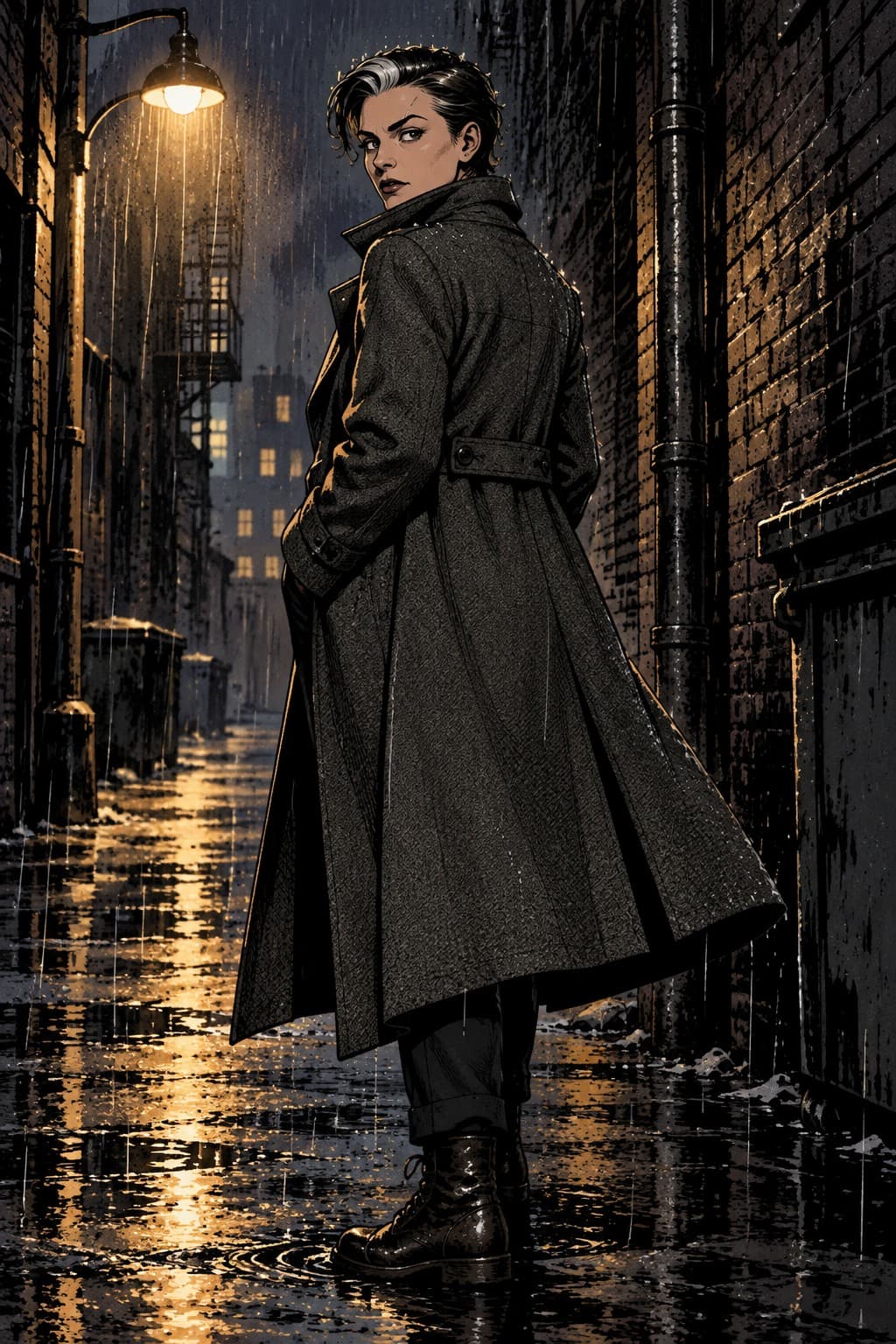
Style can be revisited too. Change the style label on the character and render a new scene to see the same design as a 3D film character, an inked comic panel or a painterly illustration. Costume and face are carried over; the rendering language changes.
Sheets, expressions and poses
Beyond the automatic turnaround, you can request expression sheets and pose studies as scenes: "expression sheet, six faces: calm, angry, surprised, laughing, tired, sly, on a plain background" or "three action poses, running, crouching, pointing, white background". Landscape shapes work well for these. Upscale the keeper to print size for a portfolio board.
Handing the design on
Downloads are plain image files, so the sheet drops into any painting app, deck or brief. For a presentation, render three or four scenes that show the character in context (at work, at rest, in motion) and one short clip. For a team, make the character once and export the sheet; teammates can describe the same design and compare.
Comparing directions quickly
When a brief could go several ways, make two or three characters with deliberately different descriptions (a heavy coat versus a cropped jacket, a long braid versus a buzz cut) and render each at Rough. Side by side on the characters page, the right direction is usually obvious within a few minutes. Delete the losers; the studio asks for confirmation and removes their renders with them. Then invest Clean and Detailed credits only in the direction that won. This is far cheaper than iterating on a single character by trial and error.
Questions
Can I get a clean turnaround without a background?
The sheet is rendered on a neutral background by default. For scenes, ask for "plain white background" in the prompt.
What if the first sheet is wrong?
Revise the description and make a new character, or keep the character and use Edit on the sheet to change specific details. Edits are saved as new images.
Does changing the style re-render everything?
No. The style label guides future renders only. Existing images stay as they are.
How large can I export?
Upscale any image to 2K, 4K or a 16-megapixel print size from the detail view.
More ways to use it
Start with one paragraph.
Describe the character, pick a style, and the sheet is drawn in about a minute.
Make a character