 AI Character
Chibi character maker
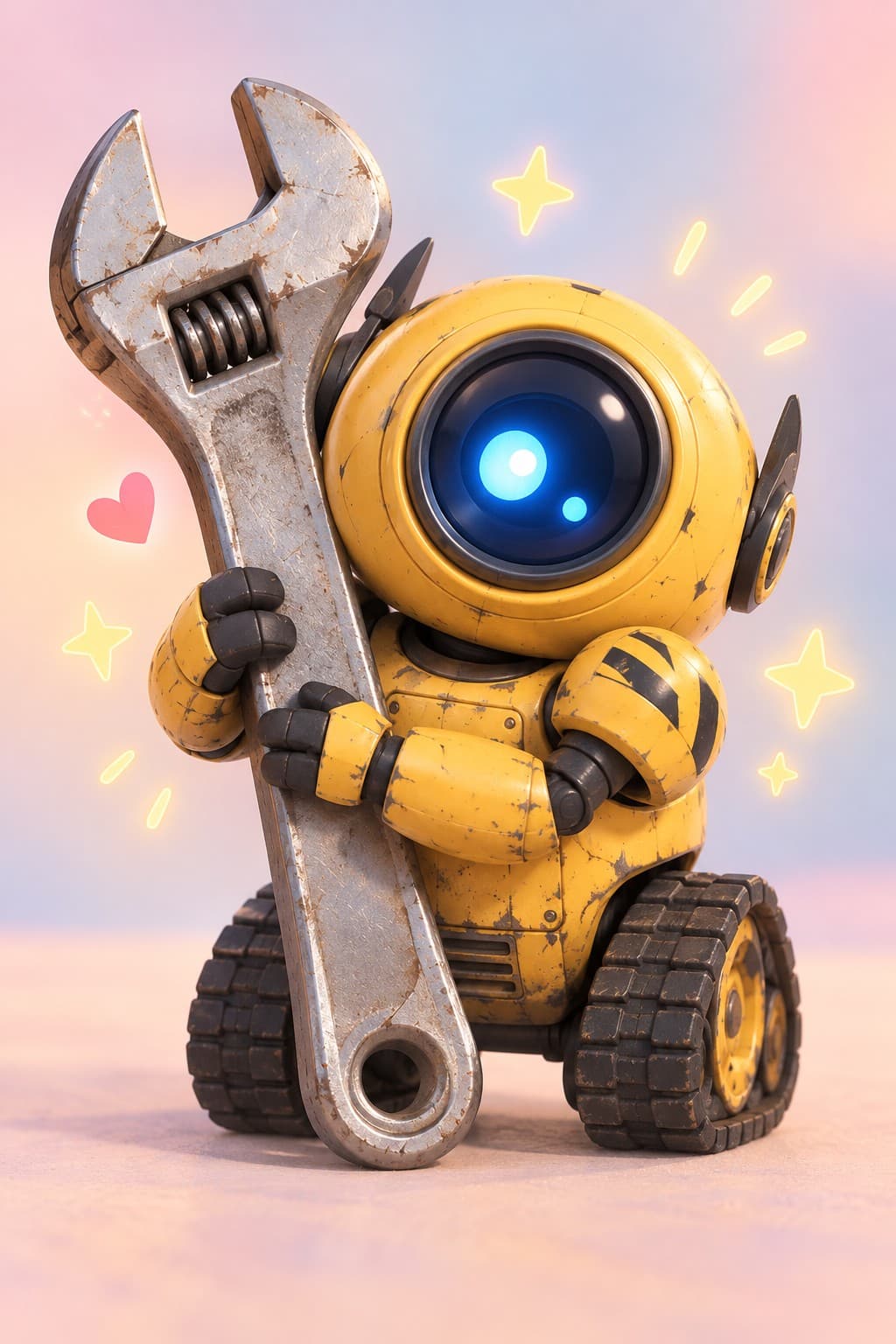
Chibi is the super-deformed style: a head two or three times too big, a tiny body, simple hands and huge expressions. It is perfect for stickers, emotes, profile icons and reaction clips. Build a chibi character from a description, or take an existing character and render a chibi version by switching the style label.
Describing for chibi
Focus on the few things that survive the shrink: hair colour and shape, eye colour, one outfit colour, one accessory. Fine details like embroidery or jewellery disappear at chibi scale, so skip them. Expressions carry the character, so write them into scene prompts: "beaming", "pouting", "sparkly-eyed", "sweat-drop nervous".
Sticker and emote sets
Render square scenes on a plain background, one emotion each: happy, sad, angry, surprised, love, sleepy, thumbs-up, facepalm. Rough quality is fine for drafts; Clean for the final set. Upscale the keepers and crop in your editor. Because the references ride along, all eight stickers look like the same character rather than eight cousins.
For a story or chat series, add props: "holding a giant pencil", "hiding under a blanket", "carrying a boba tea bigger than its head".
Chibi clips
Chibi motion is bouncy and simple. Animate a sticker-style render with "bounces twice and waves", "nods with sparkles", "spins around once". Short clips (3–4 seconds) at 720p make good animated reactions and loop cleanly.
From full-size to chibi and back
If you already have a character in another style, you can set the style label to chibi and render a scene; the face and outfit carry over in simplified form. Many people keep a main character and a chibi companion character so each stays sharp with its own references.
Expressions that read at icon size
At 64 pixels, subtle emotions vanish. Push them: closed-eye smiles, giant tears, swirly eyes, a sweat drop, cat mouths, sparkles. Write those cues into each sticker prompt. Keep the pose symmetrical and centred so the crop is easy. A plain white or single-colour background separates cleanly. Render the full set at Rough first to decide which emotions you actually need, then redo the final eight at Clean. The same references keep every sticker on-model.
If you plan an animated version of a sticker, render it first as a still, then animate it from the Videos tab; the still becomes the opening image.
Names help here as well: a sticker set with eight files called "happy", "sad", "angry" and so on is easier to use in a chat app than eight files named by timestamp. Put the emotion first in each prompt so the result grid reads the same way.
Questions
Can I turn an existing character into chibi?
Yes. Change the style label to chibi in the studio and render a new scene, or make a dedicated chibi character for the sharpest results.
Do stickers come with transparent backgrounds?
Renders are JPEG with a background. Ask for a plain white background and remove it in your editor.
How many stickers can I make with the free credits?
The 30 free credits cover a rough sheet and a few rough stickers so you can test the look.
Is chibi the same as cartoon?
Chibi is a specific proportion (huge head, tiny body). Cartoon is a broader bold 2D look with normal-ish proportions.
More ways to use it
Start with one paragraph.
Describe the character, pick a style, and the sheet is drawn in about a minute.
Make a character